How to Download TikTok Videos on PC and Mac
Updated: 2026-10-17You can save TikTok videos on a Windows PC, Mac or Chromebook with any browser, such as Chrome, Edge, Safari or Firefox. There is no software to install.
You can save TikTok videos on a Windows PC, Mac or Chromebook with any browser, such as Chrome, Edge, Safari or Firefox. There is no software to install.
Supports TikTok and Facebook videos, photo slideshows and music. Works on phone, tablet and PC.
On tiktok.com, open the video and copy the address from the address bar, or click Share and then Copy link.
Open trendsaveapp.com in a new tab, paste the link and click Download.

Click Download HD or Download without watermark. The MP4 file is saved to your Downloads folder.
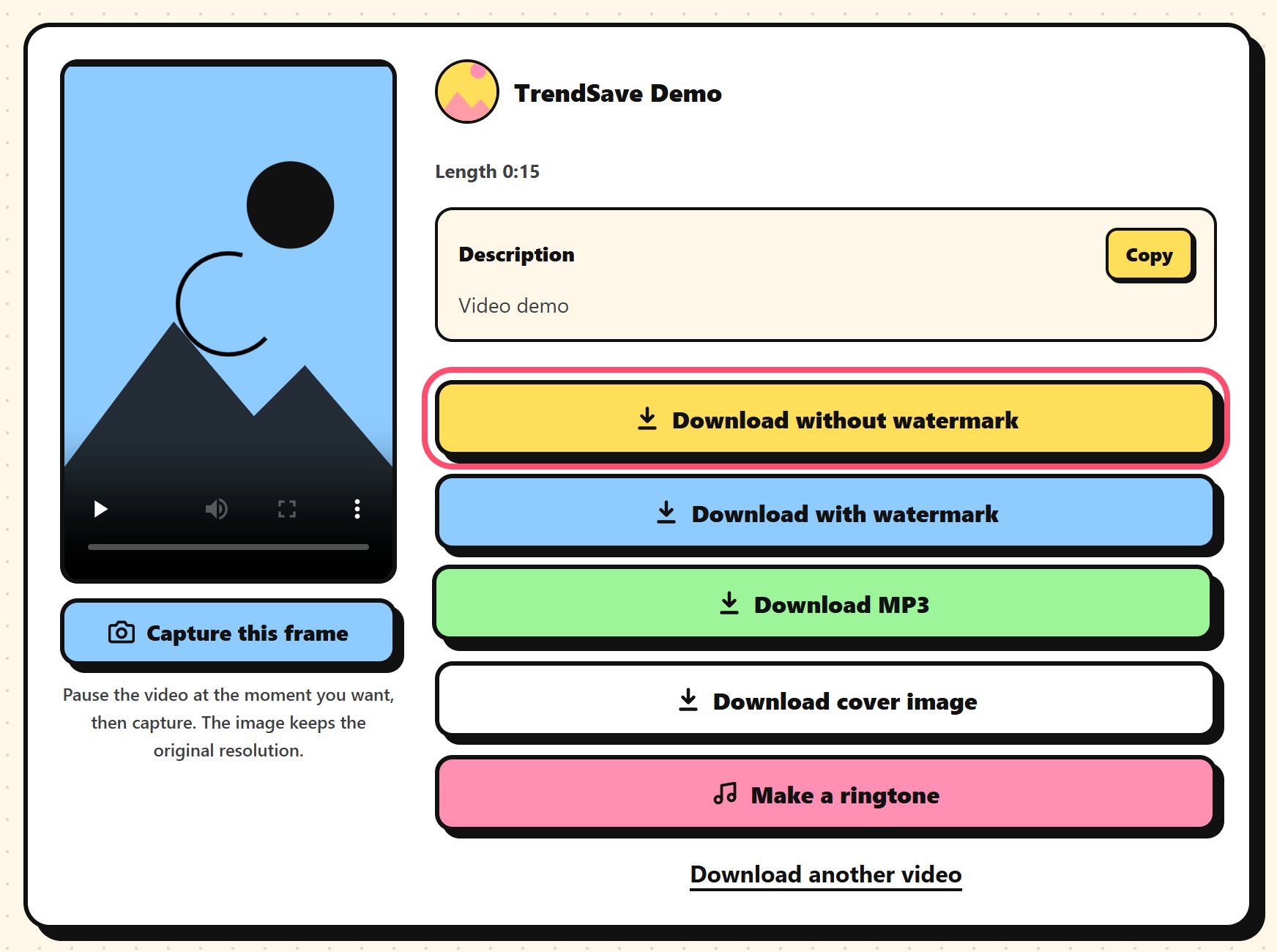
If the video opens in a new tab instead of downloading, right click the video and choose Save video as, or press Ctrl+S (Cmd+S on Mac).
In the default Downloads folder of your browser. Press Ctrl+J (Cmd+Shift+J on Mac) to see your recent downloads.
Any modern browser: Chrome, Edge, Firefox, Safari, Opera and Cốc Cốc.
Yes, when TikTok provides an HD version you will see a Download HD button.